How to import sales orders into Busy from Excel
OrderDak reads and checks each customer order, then gives you an Excel file laid out for Busy's “Import Vouchers from Excel”. In Busy you set up the column format once, then import the file. This is beta: the file was built from Busy's help pages and has not yet been imported into a real Busy install.
Most distributors on Busy type every customer order by hand. Busy can import vouchers from Excel, but only when the sheet's columns are mapped to Busy's fields and every party and item name matches your Busy masters exactly.
OrderDak does the reading and matching. Each approved order gives a Busy Excel file with one row per item, and the order list can download all approved orders in one file. Rows with the same Vch No are one order.
OrderDak does not post directly into Busy; that is not built. In the app, these orders show “Ready to import”, not “Posted”. Each download is recorded, so you can see what was already exported.
Before the file is made, each order gets the same checks as a Tally order: rate against your price list or party rates, stock, pack size, credit limit, duplicate PO number and GSTIN.
Steps in OrderDak
Choose Busy in setup
In OrderDak setup, choose Busy as your ERP and fill in the series, material centre and sale types. Upload your items and customers with the same names as in Busy.
Add, check and approve orders
Paste, upload or forward orders, fix the flagged lines and approve.
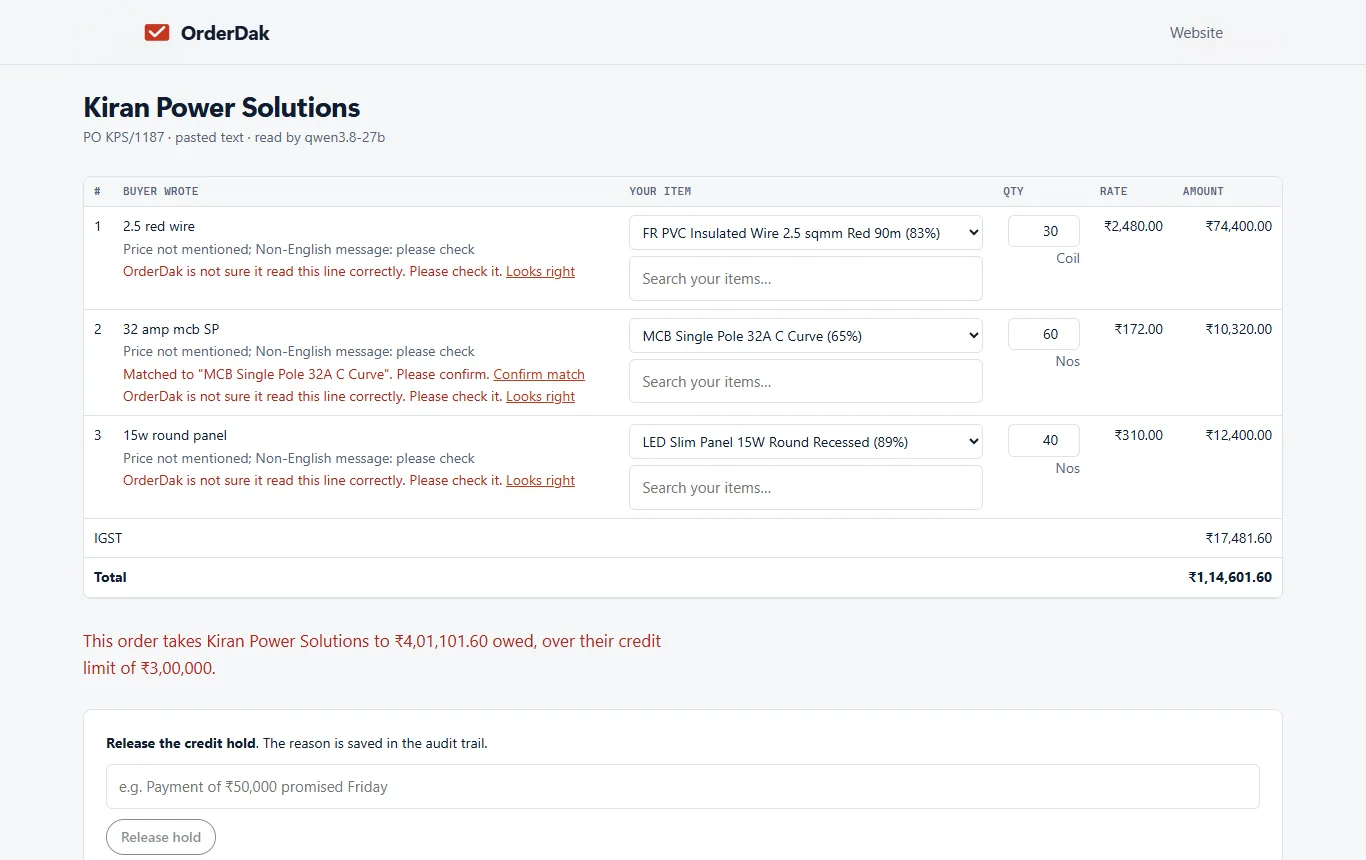
Download the Busy file
Download the file from one order, or download all approved orders from the order list. Leave “Include already exported” unticked to avoid importing an order twice.
Back up Busy
Take a backup of your Busy company before importing.
Open the import
In Busy, go to Administration, then Data Export/Import, then Import Vouchers from Excel. Choose the voucher type Sales Order if your Busy lists it; otherwise ask us before using Sale.
Map the columns once
The first time, click Configure, add a format, and match each Busy field to the column with the same heading (Series, Date, Vch No, Sale Type, Party Name, Material Centre, Item Name, Qty, Unit, Price, Disc %, Amount).
Import
Choose the file, sheet 1, starting row 2, and import. Then check the vouchers Busy created.
When OrderDak is not the right tool
If you need orders posted straight into Busy without an import step, OrderDak can't do that yet. Menu names differ between Busy versions, so check yours lists the voucher you use for customer orders. Because the file has not been tested in a real Busy install, try a few orders first.
Questions
Does OrderDak post directly into Busy?
No. Direct posting is not built. You download the import file and import it in Busy.
Has this been tested with Busy?
Not yet in a real Busy install. It was built from Busy's help pages, which is why it is marked beta.
Why does Busy reject a row?
Usually a party or item name does not match your Busy masters exactly. Upload your item and customer lists with Busy's names.
Related: How to import sales orders into Marg ERP · How to import Excel orders into Tally as sales orders · OrderDak vs Docs by Ira · Pricing
Last updated 1 November 2026 · by Venu Gopal Reddy Muvva, founder